Jul 23, 2014

Promoted Links in SharePoint 2013

Promoted Links is a new list type added in SharePoint 2013.
What it is and how to use this?
1.   New app in SP 2013 available Out of Box
2.   It is similar app like “Get Started with your site” in the home page 
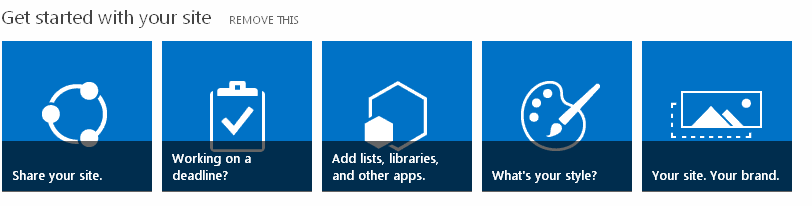
3.   It is a very cool feature which allows you to add images and links to it and display it in a Tile view in a page for quick navigation.
4.   Let’s create a promoted links app for our SharePoint 2013 home page.
5.   Go to “Add an App” -> Promoted Links -> Give a name “Home Page Navigation”
                    
6.   You will see a message. The list is empty, Add tiles from the All Promoted Links view. Now, start adding the images and links in the app as shown below
When you click on the “All Promoted Links” you will see a list view to add items in it.
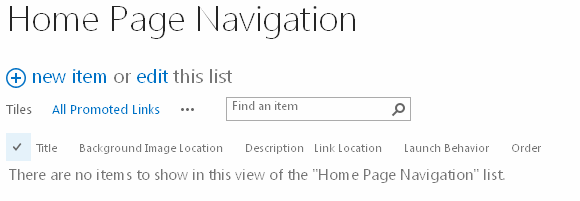
Adding new item will have the following fields
a.    Title
b.    Background Image Location
c.    Description
d.   Link Location
e.    Launch behavior
f.     Order 

Example of one item added.
Similarly, I have added 4 items in the list.
Now, in the list, if you navigate to the Tile View, you will see the images with the links displayed with Links. Cool Isn't? It is OUT OF BOX. 
If you hover the mouse, the title automatically goes up. You can click and navigate to the desired page.
This list can be displayed in a web part in the site home page which can be used for quick navigation. Please share this if it is useful!

Jul 2, 2014

New Features of SharePoint 2013

It has been a while here, there are many reasons and I was busy as well. Let’s start it again with SharePoint 2013J
SharePoint 2013 has many new features and it is trending in the market. Let’s see the list of features which is new and what is different from the other versions of SharePoint.
  1. HTML 5 and CSS 3 support  - Cross browser compatibility and optimized browser experience.
  2. Device Manager & Device Channels – new way of designing  theme for  the site using SharePoint Designer 2013.
  3. Community Portal – Social Networking  makes collaboration within the organization easier.
  4. New Search Experience (My favorite feature J) - Continuous Crawl – yes, you get the results once you publish the new contents to the site
    Fast Search is integrated in the search feature and it is not a separate product now, licensing becomes easier.
  5. Content Search Web Part – display information from the other web apps which is not possible in other versions of SharePoint – and off course content has to be crawled and indexed for displaying in this web part
  6. Rich Workflows – New actions, no code web service call
  7. Shredded Storage  - removes the duplicate files  and hence reduces the amount of storage in the site
  8. WCM – Managed metadata for navigation and shortening of URL’s
  9. Apps & Apps Store – Create and publish apps
  10. Mobile Experience –  Mobile usage has increased drastically and this feature allows you to view the SharePoint site in three view such as Classic, Contemporary, Full Screen UI.

Oct 29, 2013

The Server could not complete your request SharePoint Designer 2013

Problem:
When I tried opening SharePoint 2013 site in SharePoint Designer, I got the following error:

When I clicked on Details, it opened another dialog and continuously pop up window is opening and not able to open the SharePoint site.

 Finally got an error message
Solution:
    1.   Go to Run -> type Inetmgr -> Open the IIS
    2.   In the Web Sites select “SharePoint Web Services” in the list


    3.   Click on the Authentication and Enable “Anonymous Authentication” as shown below:

   4.   After enabling this, I am able to open the SharePoint site in designer without any issues

Reason for the issue: Check this article http://support.microsoft.com/kb/2758431 

Aug 19, 2013

News feeds not working in SharePoint 2013 - microsoft.office.server.microfeed.microfeedexception

To know about Micro Blogging in SharePoint 2013, read this post.

When I tried to use the News Feed Feature in SharePoint 2013, it thrown exception:
microsoft.office.server.microfeed.microfeedexception
The below is the screenshot: 
 Solution:
As I mentioned in the earlier post about Micro blogging in SharePoint 2013, news feeds are related to User Profile Service.
Hence, we have to check two things which are related to User Profile Service in SharePoint 2013.
    1.   Check whether AppFabric Caching service is running with the service account which has elevated permissions. 

   2.   Next, check the account which is running the User Profile Service application:
     Open Central Administration -> Mange Service Applications -> User Profile S    Service is started and also check the permissions for the service
    
   Click on the User Profile service and in the permission section in the ribbon check whether the service account running this service has full control. 


 If all the above scenarios are properly configured in SharePoint farm, then the news feed will work properly as expected.
Feel free to comment and share this post if this helps you.
